QUICK QUOTE
LUNA BUILT IN
Bring in any holiday, from wherever you found it.
Paste a link, press a button, drop in a PDF or save from your own search. Luna reads the holiday and lays it out as items, with photos and the price where the page shows one, ready for you to tick.
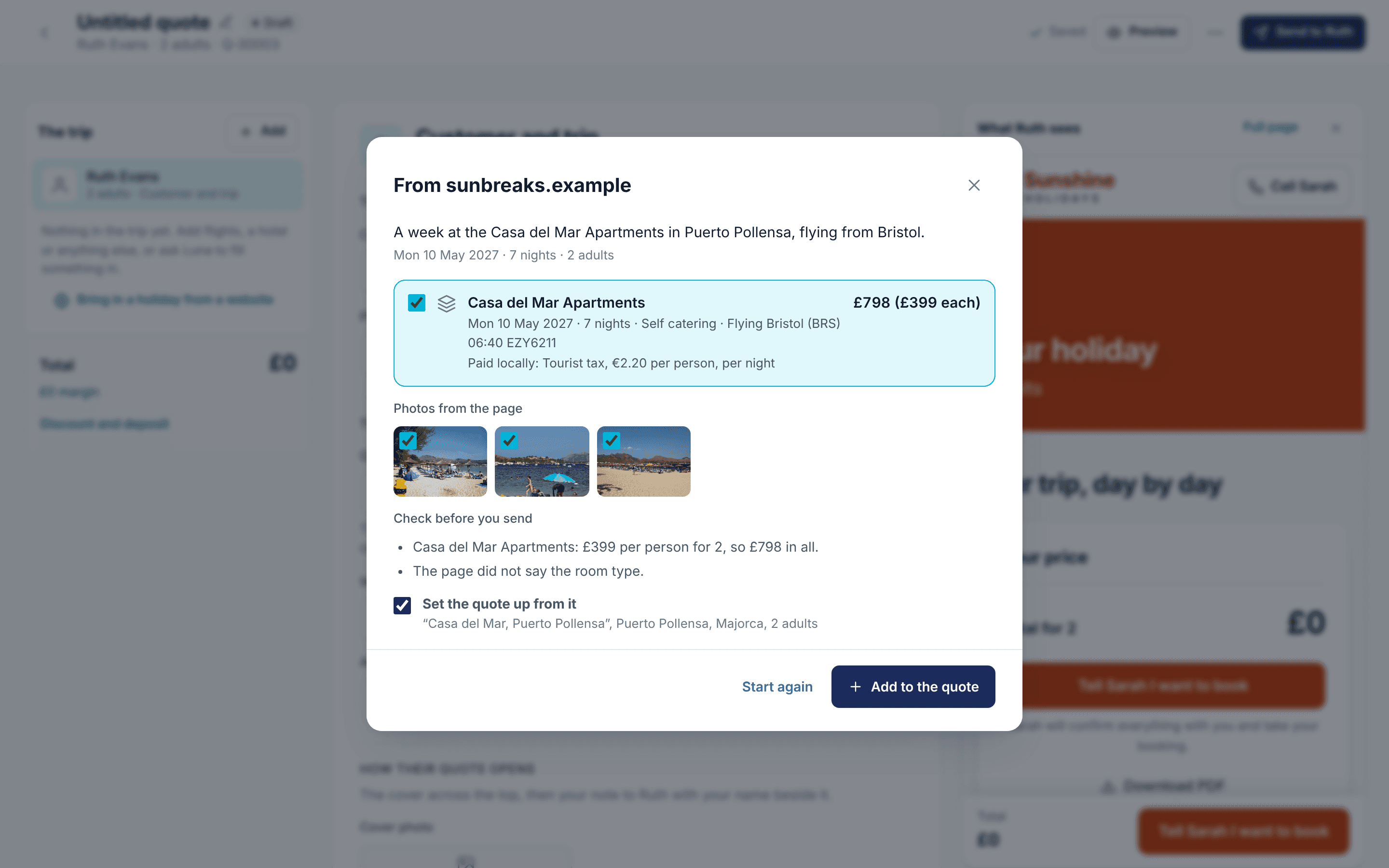
Paste a link and the whole holiday comes in
From these websites, a link brings in the description, the itinerary day by day, the photos and the ‘from’ price, worked out for your party. Check the price for your customer’s dates before you send.
The whole holiday from the link

Kuoni

Wendy Wu Tours

Newmarket Holidays

AAT Kings

Tauck

Travelsphere

Trafalgar
More being added
Paste the link, then add the price
These sites show a price only once you choose a date, so the holiday, its photos and its itinerary come in and you add the price for the departure you want.

Jet2holidays

Intrepid

G Adventures
The Quick Quote button
Some websites show a holiday only to a person’s own browser. The Quick Quote button for Chrome and Edge reads the page you are looking at, with the dates and party you chose, so the price comes in too. Bring it into a new quote or one you already have.
Bring in the page you are looking at
Open the holiday with your dates and party chosen first, so the price shows. With the button, Jet2holidays’ price and inclusions come in too.

TUI

easyJet holidays

Virgin Atlantic Holidays

British Airways Holidays

Avalon Waterways
Cosmos

Globus
More being added
Trade sites, screenshots and PDFs
For holidays behind a trade login, save the supplier’s quote as a PDF, take screenshots of it or copy and paste the page. Quick Quote reads the holiday from that.
Bring in what your trade login shows you
Up to 6 screenshots or a 20-page PDF. You can also select everything on a supplier’s page and paste it in.

Gold Medal

Incredible Journeys

Expedia TAAP
From your own Travelify website
Add one line to your Travelify website and a Quick Quote tab appears for your signed-in agents. They save holidays from your own search results, across 200 suppliers, and turn them into a quote.
1
Save from your results
Agents save holidays from your own search results. Only signed-in agents see the tab.
2
Check and add notes
Each saved holiday arrives as a card. Add notes and check the dates before you go on.
3
Create the quote
Press Create quote, or add to one you already have. Prices and order stay in step with the customer’s list on your website.
Quotes your website visitors ask for
Visitors and signed-in customers save holidays as favourites on your Travelify website, then ask you for a quote. A shared list opens on your own website, with your logo.
1
They save favourites
They heart holidays in the search results on your website. A Favourites tab in your colours keeps them, and they can name lists, keep them and share them.
2
They ask for a quote
From their favourites they send their name, an email or phone number, when they want to go, who is going and a few words of their own.
3
Your team takes it
It arrives in Quick Quote as a draft that nobody has yet, and your inbox gets an email in your agency’s name. The first agent to press Take this quote has it.
Find a cruise
Type a line, a ship, a port, a region or a month, such as ‘Rhine 2027’, and pick a sailing from our cruise library.
It comes into the quote with the ship, the date, the ports, the day by day and photos. You add the price for your customer, and where the cruise line has listed a price recently, you see it as a guide.
Search by line, ship, port, region or month
Sailings arrive with their itinerary and photos
You set the price your customer sees

Or start from a few words
Not every quote starts with a supplier page.
Describe the trip
Type ‘7 nights in Lisbon for 2 in June, 4 star, near the old town’ and Luna sets up the customer, the trip and the dated pieces for you to price.
Draft from an enquiry
Press Draft a quote on a website enquiry. The facts come straight from the enquiry, and Luna adds a welcome note and up to three ideas that only you see.
Use a template
Start from a trip you have quoted before, private or shared with your team. Choose new dates and every item moves to match.
Type it in
Add any of the 15 things a quote can hold by hand, from a flight to a fee.
What Luna checks as it reads
Luna lays the holiday out for you to tick. You stay in charge of what goes in.
Only what the page says
A holiday’s inclusions come in. The website’s own offers and reviews stay out, and Luna never invents a hotel, a date, a flight or a price.
No guessed prices
A price is the page’s own, often a ‘from’ price. Anything unclear, such as another currency, becomes a note for you.
The right photos
Photos with words or logos on them are left out and maps go last. You can tick any of them back in.
Questions people ask
Which supplier websites work?
The ones named on this page, with more being added. Supplier websites change, so if a link stops coming in, the Quick Quote button or a PDF of the page brings the holiday in instead.
Does the price always come in?
When the page shows one. Some sites show a price only once you pick a date, and then you add it. Prices are the page’s own, often a ‘from’ price, so check it for your customer’s dates.
How do I get the Quick Quote button?
Your Quick Quote home screen has a link to add it to Chrome or Edge.
Does the button get round websites that block other sites?
No. It reads the page in your own browser, as you see it, and only when you choose to bring it in.
Can visitors to my website ask for a quote?
Yes. Visitors and signed-in customers save holidays as favourites on your Travelify website and ask you for a quote from them, with their dates, who is going and their own words. It arrives in Quick Quote as a draft for the first agent who takes it.
Quick Quote is included on Ignite and Bespoke. Book a demo, or talk to your account manager about switching it on.
MORE ABOUT QUICK QUOTE